The Unix timestamp converter for your Mac menu bar. Work with seconds, milliseconds, microseconds and nanoseconds, choose from 20+ built-in formats, or create your own date formats. Copy, convert and paste — with a click or a keyboard shortcut. Fully offline. One-time purchase.
$2.99 · One-time · macOS 14.6+ · No subscription
New in 1.0.7: time zones, relative time & direct input · See the changelog →
UnixTime converts Unix timestamps without opening a window or filling in a field — it reacts straight to your clipboard. Global keyboard shortcuts let you stay in the app you are working in.
UnixTime reads your clipboard, detects whether it's a timestamp or a date, converts it, and copies the result — all in one click. Nothing in clipboard? You get the current timestamp.
A clean panel shows all formats at once. Click any row to copy it. Reorder and hide formats via drag & drop — show only the ones you actually use.
Need a timestamp for a specific date or time offset? Enter year, month, day, hour, minute, second and timezone. Add or subtract time spans. Copy in one click.
Keyboard-free, no context-switching. Just your menu bar, right where you need it.
From milliseconds and nanoseconds to custom date formats: convert with a click or shortcut, calculate dates and make UnixTime work your way.
Convert Unix timestamps and work with .NET Ticks, Windows FILETIME, browser timestamps and readable dates. Show the formats you need, arrange them your way and choose your default.
Selected an extra space? Copied the quotes or brackets too? UnixTime still recognizes the timestamp or date. When you replace it directly with a shortcut, the surrounding characters stay in place, including spaces, tabs and line breaks. Your text keeps its formatting, even when your selection is a little imprecise.
Field names such as ts= or created_at: stay in place too. Invisible stray characters, Java suffixes L/l and the BigInt suffix n are removed. Copying a result normally gives you just the converted value.
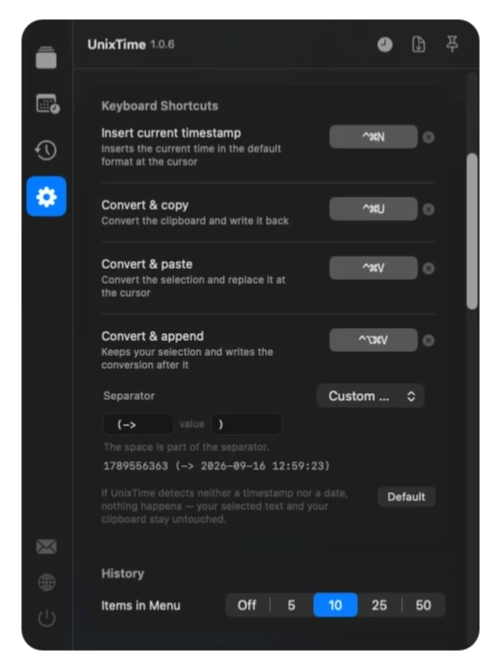
Press ⌘⌃⌥V to keep your selected text and add the converted result right after it. Handy for adding a readable date beside a timestamp in a log or in your notes.
Choose parentheses, square brackets, an arrow, // or # as a preset. Or set your own text before and after the result (prefix and postfix). A preview in Settings shows exactly how it will look.
UnixTime now converts negative Unix timestamps into readable dates. It also works the other way: a date before January 1, 1970 becomes the matching negative timestamp. The minus sign is recognized as part of the value.
Available across apps, customizable and individually switchable. Inserting text requires Accessibility permission.
Hover over the menu bar icon to see what's in your clipboard and what UnixTime will do — before you even click.
Quickly access previous conversions and copy them again – no need to redo anything. The history shows the copied value, its calculated counterpart, the source app, and the timestamp at a glance.
Work across timezones with the date generator — pick any timezone for your timestamp output.
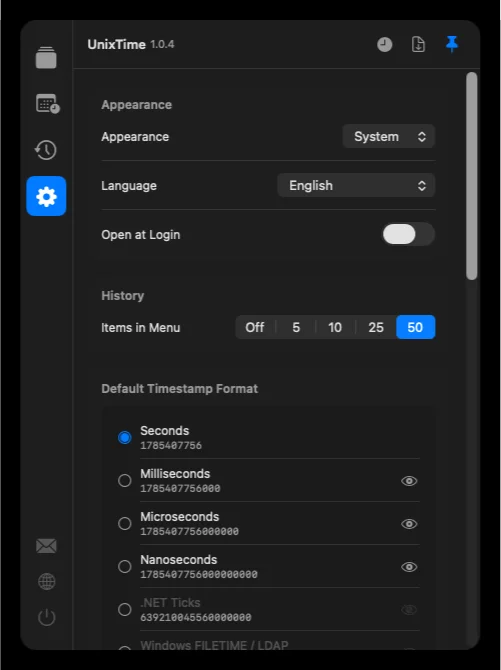
Follows macOS appearance automatically, or pin to light or dark mode.
Fully localized in 12 languages: English, Dutch, French, German, Hindi, Italian, Japanese, Portuguese, Russian, Simplified Chinese, Spanish, Turkish
Generate random timestamps for full days including time, for specific days with a fixed time, or just a random time within a single day.
Name and save as many custom date formats as you need. Use Unicode patterns such as yyyy-MM-dd HH:mm:ss, add literal text or calendar weeks, and keep your preferred formats one click away.
Unix and epoch timestamps exactly the way you need them: seconds, milliseconds, microseconds or nanoseconds, custom date patterns, custom order – and hide any formats you don't use.
A complete toolkit should still feel simple. UnixTime is built to be reliable, use little CPU and memory, and let you choose the formats, shortcuts and layout that work for you.

Precision for log analysis & forensics
Convert Unix timestamps with nanosecond precision. UnixTime preserves fractional seconds from numeric input timestamps. No floating-point rounding. No zeros recreated from whole seconds.
17908128001234567892026-10-01 00:00:00.123456789 UTCExample: Unix nanoseconds, a custom date format and the UTC time zone. Source accuracy still matters; conversion does not invent extra measurement precision.
| Pattern | Display precision | Example |
|---|---|---|
SSS | Milliseconds (3 digits) | .123 |
SSSSSS | Microseconds (6 digits) | .123456 |
SSSSSSSSS | Nanoseconds (9 digits) | .123456789 |
Use, for example yyyy-MM-dd HH:mm:ss.SSSSSSSSS. Nine digits display the full nanosecond fraction. Three or six display only the leading digits, without rounding up. A pattern without S does not display fractional seconds.
Keyboard shortcuts on your Mac
Copy your time value and click the menu bar icon — or press ⌘⌃U. Reassign any of the four shortcuts to suit your workflow.
⌘ = Command · ⌃ = Control · ⌥ = Option. Inserting, replacing and appending text require macOS Accessibility permission and an editable text field. Clipboard conversion does not require that permission.
Keyboard shortcuts explained →
Our goal: the most feature-complete timestamp app for Mac — dependable, light on resources and easy to make your own. Every update should make your daily work simpler, with careful attention to correctness, speed and usability.
Zero network connections. Your clipboard data never leaves your machine.
No analytics, no telemetry, no crash reporters phoning home.
Built natively for macOS. Fast startup, minimal memory footprint, battery friendly.
Pay once, own it forever. No subscription, no in-app purchases, no upsells.
Short, honest answers. See the full FAQ for everything else.
No. Numeric input timestamps retain their fractional seconds down to the nanosecond. For the complete output, choose a custom date format with SSSSSSSSS. SSS displays milliseconds (3 digits), SSSSSS microseconds (6 digits), and SSSSSSSSS nanoseconds (9 digits). Shorter patterns show only the leading digits, without rounding up. This applies to numeric input timestamps; precision already lost in the source cannot be restored.
Copy a timestamp, click UnixTime in the menu bar and paste the date. Copy a date to convert it back to a timestamp.
For a command-line conversion, macOS includes date -r 1720512000. Add -u for UTC: date -u -r 1720512000. UnixTime adds clipboard conversion, keyboard shortcuts, history and saved formats to that daily workflow.
A Unix timestamp counts seconds since 1 January 1970, 00:00:00 UTC. Systems also represent that elapsed time in milliseconds, microseconds or nanoseconds.
The unit matters: 1720512000 seconds and 1720512000000 milliseconds describe the same instant. A timestamp has no local time zone; the time zone determines how its date is displayed.
UnixTime brings milliseconds, microseconds, nanoseconds, many timestamp formats and unlimited custom date formats together in a native menu bar app.
Use a web converter for occasional lookups or the macOS Terminal for scripts. UnixTime is designed for repeated conversions while working in editors, logs and database tools: clipboard detection, global shortcuts and a history with the source app.
UnixTime is available in 12 languages: English, Dutch, French, German, Hindi, Italian, Japanese, Portuguese, Russian, Simplified Chinese, Spanish and Turkish. It follows your Mac's system language automatically.
Beyond the interface, the output formats are localized too: weekday and month names appear in the selected language. Set the language automatically (macOS system language) or manually in settings — changes take effect instantly, no restart.
Yes. Timestamp conversion, date calculation, custom formats and history all work locally on your Mac. No account or subscription is required.
UnixTime does not send your clipboard or conversion history to a server. Web converters differ: some also calculate locally in the browser. UnixTime gives you a native workflow that remains available without an internet connection.
They use the same Unix epoch but different units: 1 second = 1,000 milliseconds = 1,000,000 microseconds = 1,000,000,000 nanoseconds.
Present-day positive Unix timestamps typically have 10, 13, 16 or 19 digits respectively. That is a practical clue, not a universal definition. With a Unix format selected as default, UnixTime detects these units for supported values. For formats with a different epoch, such as FILETIME or .NET Ticks, select that format as the default to avoid ambiguous numeric input.
Missing a format, an easier workflow or a setting? Found something that does not work as expected? Please email me. I build UnixTime and welcome the details that help me make it better.
Have a wishlist? Tell me what you need and how it would help your workflow. A short example is especially helpful. I decide which ideas to build and in what order, based on how well they fit UnixTime. Some suggestions may not make it into the app: keeping it focused, fast and easy to use matters too.
Email your wishlist →