No. Numeric input timestamps retain their fractional seconds down to the nanosecond. For the complete output, choose a custom date format with SSSSSSSSS. SSS displays milliseconds (3 digits), SSSSSS microseconds (6 digits), and SSSSSSSSS nanoseconds (9 digits). Shorter patterns show only the leading digits, without rounding up. This applies to numeric input timestamps; precision already lost in the source cannot be restored.
A Unix timestamp counts seconds since 1 January 1970, 00:00:00 UTC. Systems also represent that elapsed time in milliseconds, microseconds or nanoseconds.
The unit matters: 1720512000 seconds and 1720512000000 milliseconds describe the same instant. A timestamp has no local time zone; the time zone determines how its date is displayed.
Copy a timestamp, click UnixTime in the menu bar and paste the date. Copy a date to convert it back to a timestamp.
For a command-line conversion, macOS includes date -r 1720512000. Add -u for UTC: date -u -r 1720512000. UnixTime adds clipboard conversion, keyboard shortcuts, history and saved formats to that daily workflow.
UnixTime brings milliseconds, microseconds, nanoseconds, many timestamp formats and unlimited custom date formats together in a native menu bar app.
Use a web converter for occasional lookups or the macOS Terminal for scripts. UnixTime is designed for repeated conversions while working in editors, logs and database tools: clipboard detection, global shortcuts and a history with the source app.
Yes. Timestamp conversion, date calculation, custom formats and history all work locally on your Mac. No account or subscription is required.
UnixTime does not send your clipboard or conversion history to a server. Web converters differ: some also calculate locally in the browser. UnixTime gives you a native workflow that remains available without an internet connection.
Yes. Save unlimited custom date formats, each with its own name and Unicode date pattern.
For example, yyyy-MM-dd HH:mm:ss produces a sortable date and time. Add month names, calendar weeks or literal text in single quotes. Show, hide and reorder formats, then pick your preferred date format as the default.
New: SSS for milliseconds (3 digits), SSSSSS for microseconds (6 digits), and SSSSSSSSS for nanoseconds (9 digits). Example: yyyy-MM-dd HH:mm:ss.SSSSSSSSS. See precision and example.
UnixTime is available in 12 languages: English, Dutch, French, German, Hindi, Italian, Japanese, Portuguese, Russian, Simplified Chinese, Spanish and Turkish. It follows your Mac's system language automatically.
Beyond the interface, the output formats are localized too: weekday and month names (EEEE, MMMM) appear in the selected language. Set the language automatically via your macOS system language, or choose it manually in Settings — changes take effect instantly, no restart required.
No. UnixTime is sandboxed, has no network entitlement, and collects no analytics, telemetry, or usage data whatsoever.
UnixTime is designed with privacy as a core principle. The App Store version is built with App Sandbox enabled and both com.apple.security.network.client and network.server entitlements disabled — the app literally cannot make network requests. No analytics SDK, no crash reporter beyond what Apple provides in App Store Connect (opt-in, aggregated). Your timestamps, history, and settings never leave your Mac.
They use the same Unix epoch but different units: 1 second = 1,000 milliseconds = 1,000,000 microseconds = 1,000,000,000 nanoseconds.
Present-day positive Unix timestamps typically have 10, 13, 16 or 19 digits respectively. That is a practical clue, not a universal definition. With a Unix format selected as default, UnixTime detects these units for supported values. For formats with a different epoch, such as FILETIME or .NET Ticks, select that format as the default to avoid ambiguous numeric input.
At 03:14:08 UTC, a signed 32-bit Unix timestamp exceeds its maximum value of 2147483647. Older affected systems may overflow and interpret the next second as a date in 1901.
This is known as the Year 2038 problem. Modern 64-bit systems have a vastly larger range. UnixTime stores Unix seconds as a signed 64-bit value, so its conversions do not overflow at the 2038 boundary. Legacy software, embedded devices, databases and file formats can still be affected if they use 32-bit timestamps.
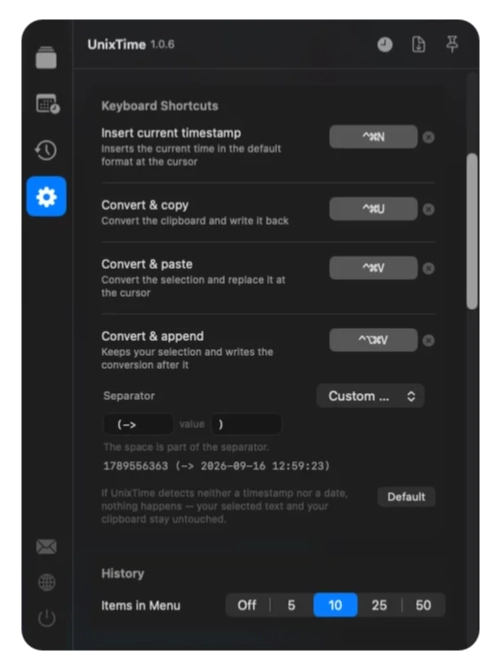
Four shortcuts are available: ⌘⌃U converts the clipboard, ⌘⌃V converts and replaces selected text, ⌘⌃N inserts the current timestamp, and ⌘⌃⌥V appends a conversion to the original text.
⌘ means Command, ⌃ means Control and ⌥ means Option (Alt). These are the default combinations: change, disable or reset each one in Settings. UnixTime must be running. The three actions that insert text directly require Accessibility permission. The following entries explain each workflow in detail.
Copy a timestamp or date, then press ⌘⌃U (Command + Control + U). UnixTime converts the clipboard contents and writes the result back to the clipboard. Paste it wherever you need it with ⌘V.
UnixTime detects the direction automatically: a timestamp becomes a date, and a recognized date becomes a timestamp. Your default formats control the output. This shortcut does not replace text in your open document.
Surrounding spaces, brackets and quotes are restored around the result for this action. Invisible stray characters and type suffixes are removed. If no timestamp or date is recognized, no conversion takes place. This clipboard-only action does not require Accessibility permission.
Select a timestamp or date in editable text and press ⌘⌃V (Command + Control + V). UnixTime reads the selection, converts it and replaces it with the result. There is no need to copy and paste manually.
An imprecise selection works too: selected spaces, tabs, line breaks, brackets and quotes stay in place. Only the recognized value is converted; invisible stray characters and type suffixes are removed.
With nothing selected, UnixTime uses the clipboard as its source and inserts the result at the cursor. If no timestamp or date is recognized, nothing is inserted or overwritten.
The destination app must support copying and pasting. Allow UnixTime access in macOS System Settings under Privacy & Security → Accessibility. Choose your output format in UnixTime.
Place the cursor in an editable text field and press ⌘⌃N (Command + Control + N). UnixTime creates a timestamp for the current moment and inserts it using your default timestamp format.
You do not need to copy a value first. This shortcut generates a new value instead of converting your selection, making it useful for notes, test data or log entries. If text is selected, it is replaced just as it would be with a normal paste.
UnixTime needs macOS Accessibility permission to insert text in the destination app. Check your default format too: seconds and milliseconds describe the same moment but produce different numbers.
Select a timestamp or date and press ⌘⌃⌥V (Command + Control + Option + V). UnixTime keeps the original text and adds the conversion after it. You can retain the raw value while also seeing its readable counterpart.
The parentheses preset produces “original value (converted result)”, for example. Your default formats determine the date or timestamp. Choose a preset or custom additions in Settings.
This action leaves the original unchanged, including quotes, brackets and type suffixes such as L or n. The addition is inserted before trailing spaces, tabs and line breaks so it does not accidentally appear on the next line.
With nothing selected, the clipboard provides the source, and the original plus its conversion are inserted at the cursor. If no timestamp or date is recognized, your text is left untouched. Inserting text requires Accessibility permission.
Since v1.0.6, UnixTime recognizes timestamps and dates even when extra characters are copied before or after them. It checks the actual value and remembers its surroundings. Your selection no longer needs to start and end exactly at the first and last digit.
Whitespace is preserved: U+0020 SPACE, U+0009 TAB, U+000A NEWLINE, U+00A0 NO-BREAK SPACE, U+202F NARROW NO-BREAK SPACE, U+2009 THIN SPACE and U+3000 IDEOGRAPHIC SPACE. Windows line endings (CRLF) are preserved too. When replacing a value, the number and type of surrounding characters are restored: a tab stays a tab.
Syntax characters are preserved: straight quotes " and ', backtick `, comma ,, semicolon ;, colon :, equals sign =, parentheses ( ), square brackets [ ], braces { }, angle brackets < > and vertical bar |. Typographic quotes „ “ ” ‚ ‘ ’ and guillemets « » are supported too.
Field names are preserved: assignments such as ts= or created_at: before a value stay in place. An assignment prefix is recognized only when a field name appears to the left of the separator. A time such as 12:34:56 is therefore not split into an assignment.
Invisible stray characters are removed: U+200B ZERO WIDTH SPACE, U+200C ZERO WIDTH NON-JOINER, U+200D ZERO WIDTH JOINER, U+2060 WORD JOINER and U+FEFF BYTE ORDER MARK. These can be copied from web pages or documents and prevent recognition. When separated from the edges, they are not written back.
Type suffixes are removed: Java-long suffixes L and l and the JavaScript-BigInt suffix n are recognized immediately after a digit. They describe the original number type and do not belong to the converted date. The signs - and +, however, are part of the value and are never stripped as surrounding characters.
The action determines the output: ⌘⌃V and clipboard conversion with ⌘⌃U restore the preserved surroundings. Copying a result through the menu bar click, menu, format row or history gives you just the value. Appending with ⌘⌃⌥V keeps the entire original text, including type suffixes and invisible characters.
Cleanup applies to the edges of a single value, not arbitrary characters inside text. Two timestamps on separate lines do not become a batch conversion. If no value is recognized, the conversion shortcuts do not replace your text.
Yes. Since v1.0.6, UnixTime also converts negative Unix timestamps. They represent moments before the Unix epoch: January 1, 1970 at 00:00:00 UTC. The minus sign is part of the value and is preserved during recognition.
Conversion works both ways: a negative timestamp becomes a date, and a recognized date before 1970 becomes its matching negative timestamp. Unix seconds, milliseconds, microseconds and nanoseconds are supported. Choose your output format as usual.
Automatic recognition of negative values extends back to 1900. This is an app recognition limit, not a limit of Unix time itself. The displayed date and time also depend on the selected time zone; the timestamp always represents the same moment.
Open the keyboard shortcuts section in UnixTime Settings. Under Convert & append, choose how the additional result should look using the separator setting. The preview updates to show the output.
Presets include parentheses (…), square brackets […], an arrow → … and comment styles // … and # …. Use them to add context in notes or place a conversion after a timestamp as a comment.
The custom option lets you set a prefix and a postfix. The prefix goes before the converted result; the postfix goes after it. For “original value [Date: result]”, use [Date: as the prefix and ] as the postfix. Include any spaces you want in the output.
Use the preview to check spacing and brackets before using the shortcut. This setting applies to Convert & append (⌘⌃⌥V by default). Your default date and timestamp formats still determine the format of the converted value itself.
UnixTime requires macOS 14.6 (Sonoma) or later. It runs natively on both Apple Silicon and Intel Macs.
The App Store version requires macOS 14.6 or later. Update macOS before installing if your Mac is running an older version.
A Unix timestamp identifies an instant independently of your local time zone. The same timestamp can be displayed as UTC or local time.
UnixTime includes ISO 8601 UTC and local date formats. In the date calculator, choose a time zone when entering a date, then create the corresponding timestamp.
UnixTime is a one-time purchase from the Mac App Store at $2.99 USD (€2.99). No subscription, no ads, no in-app purchases.
UnixTime follows a fair one-time pricing model. Pay once, own it forever, get all future updates on macOS 14.6 and later included. No hidden fees, no telemetry, no upsells. If Apple later requires a major macOS update that breaks compatibility, you keep the version you own. See pricing details.

Precision for log analysis & forensics
Does not round. Down to the nanosecond.
Convert Unix timestamps with nanosecond precision. UnixTime preserves fractional seconds from numeric input timestamps. No floating-point rounding. No zeros recreated from whole seconds.
17908128001234567892026-10-01 00:00:00.123456789 UTCExample: Unix nanoseconds, a custom date format and the UTC time zone. Source accuracy still matters; conversion does not invent extra measurement precision.
Custom formats: 3, 6 or 9 digits.
| Pattern | Display precision | Example |
|---|---|---|
SSS | Milliseconds (3 digits) | .123 |
SSSSSS | Microseconds (6 digits) | .123456 |
SSSSSSSSS | Nanoseconds (9 digits) | .123456789 |
Use, for example yyyy-MM-dd HH:mm:ss.SSSSSSSSS. Nine digits display the full nanosecond fraction. Three or six display only the leading digits, without rounding up. A pattern without S does not display fractional seconds.
Keyboard shortcuts on your Mac
Keep typing. Your timestamp is ready.
Copy your time value and click the menu bar icon — or press ⌘⌃U. Reassign any of the four shortcuts to suit your workflow.
- ⌘⌃U
- Convert the clipboard
- ⌘⌃V
- Convert and replace your selection
- ⌘⌃⌥V
- Append the conversion to the original
- ⌘⌃N
- Insert the current timestamp
⌘ = Command · ⌃ = Control · ⌥ = Option. Inserting, replacing and appending text require macOS Accessibility permission and an editable text field. Clipboard conversion does not require that permission.
Keyboard shortcuts explained →