Seconds and milliseconds look similar
Read individual values as dates and check their units against the source schema.
UnixTime · Data Engineering & Analytics
Before investigating an entire pipeline, check a specific value. UnixTime turns timestamps from query results and exports into readable dates on your Mac.
Check time values in data samples: Unix timestamps with nanosecond precision, without rounding.
Sound familiar?
Read individual values as dates and check their units against the source schema.
Copy a value from your query result and convert it with the menu bar icon or ⌘⌃U.
History shows conversions with their source app. Record the table, field and query separately in your analysis tools.
Your next time value
Select a single time value from the affected column.
Click the UnixTime menu bar icon or press ⌘⌃U, then paste the converted date into your analysis notes.
Check whether the time and expected unit fit the event. Repeat with further targeted samples.
The example uses UTC. Your output follows your selected default formats. Direct insertion via a shortcut requires macOS Accessibility permission.
Formats and keyboard shortcuts explained →
Precision for log analysis & forensics
Convert Unix timestamps with nanosecond precision. UnixTime preserves fractional seconds from numeric input timestamps. No floating-point rounding. No zeros recreated from whole seconds.
17908128001234567892026-10-01 00:00:00.123456789 UTCExample: Unix nanoseconds, a custom date format and the UTC time zone. Source accuracy still matters; conversion does not invent extra measurement precision.
| Pattern | Display precision | Example |
|---|---|---|
SSS | Milliseconds (3 digits) | .123 |
SSSSSS | Microseconds (6 digits) | .123456 |
SSSSSSSSS | Nanoseconds (9 digits) | .123456789 |
Use, for example yyyy-MM-dd HH:mm:ss.SSSSSSSSS. Nine digits display the full nanosecond fraction. Three or six display only the leading digits, without rounding up. A pattern without S does not display fractional seconds.
Keyboard shortcuts on your Mac
Copy your time value and click the menu bar icon — or press ⌘⌃U. Reassign any of the four shortcuts to suit your workflow.
⌘ = Command · ⌃ = Control · ⌥ = Option. Inserting, replacing and appending text require macOS Accessibility permission and an editable text field. Clipboard conversion does not require that permission.
Keyboard shortcuts explained →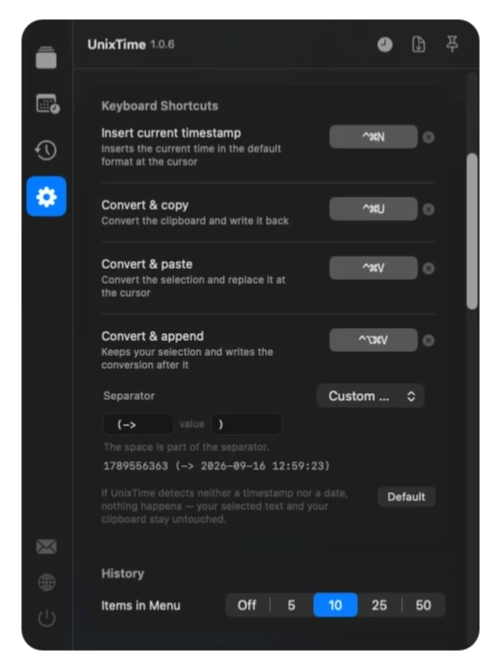
Before you start
No. This workflow is for individual values and manual spot checks. Keep using your data tools for batch processing.
No. Conversion and the app’s history run locally on your Mac.
Use a custom date format: SSS for milliseconds (3 digits), SSSSSS for microseconds (6 digits), or SSSSSSSSS for nanoseconds (9 digits). Choose nine digits to display all available nanoseconds. Shorter patterns show only the leading digits, without rounding up.
UnixTime must be running on your Mac. All shortcuts can be reassigned. Replacing, inserting and appending text require macOS Accessibility permission and an editable destination. Converting the clipboard with the menu bar icon or ⌘⌃U does not require that permission. ⌘ means Command, ⌃ means Control and ⌥ means Option (Alt).
Yes. Conversion, the date generator and history run locally. They need neither an account nor an internet connection. UnixTime is a one-time purchase without a subscription; see the Mac App Store for the current price.
For your next timestamp
Install UnixTime, choose your default formats and try the workflow with your own time value.
