A number does not explain a bug
Read creation and expiry times from API responses as dates instead of trying to interpret raw seconds.
UnixTime · Backend & API
You have the expires_at value. UnixTime turns it into a readable date with a click on the menu bar icon or ⌘⌃U. Check the expiry time and get back to your API.
Inspect API timestamps: convert Unix seconds through nanoseconds without rounding, directly on Mac.
Sound familiar?
Read creation and expiry times from API responses as dates instead of trying to interpret raw seconds.
Choose a date and time zone in the generator, then copy the timestamp into your test request.
A single value surrounded by quotes or prefixed with a field name such as expires_at: can be converted too. You do not have to trim every selection by hand.
Your next time value
Copy the individual expires_at value from your API response.
Click the UnixTime menu bar icon or press ⌘⌃U (Command + Control + U). The date is now in your clipboard.
Paste the result into your debug notes and compare it with the expected expiry time.
The example uses UTC. Your output follows your selected default formats. Direct insertion via a shortcut requires macOS Accessibility permission.
Formats and keyboard shortcuts explained →
Precision for log analysis & forensics
Convert Unix timestamps with nanosecond precision. UnixTime preserves fractional seconds from numeric input timestamps. No floating-point rounding. No zeros recreated from whole seconds.
17908128001234567892026-10-01 00:00:00.123456789 UTCExample: Unix nanoseconds, a custom date format and the UTC time zone. Source accuracy still matters; conversion does not invent extra measurement precision.
| Pattern | Display precision | Example |
|---|---|---|
SSS | Milliseconds (3 digits) | .123 |
SSSSSS | Microseconds (6 digits) | .123456 |
SSSSSSSSS | Nanoseconds (9 digits) | .123456789 |
Use, for example yyyy-MM-dd HH:mm:ss.SSSSSSSSS. Nine digits display the full nanosecond fraction. Three or six display only the leading digits, without rounding up. A pattern without S does not display fractional seconds.
Keyboard shortcuts on your Mac
Copy your time value and click the menu bar icon — or press ⌘⌃U. Reassign any of the four shortcuts to suit your workflow.
⌘ = Command · ⌃ = Control · ⌥ = Option. Inserting, replacing and appending text require macOS Accessibility permission and an editable text field. Clipboard conversion does not require that permission.
Keyboard shortcuts explained →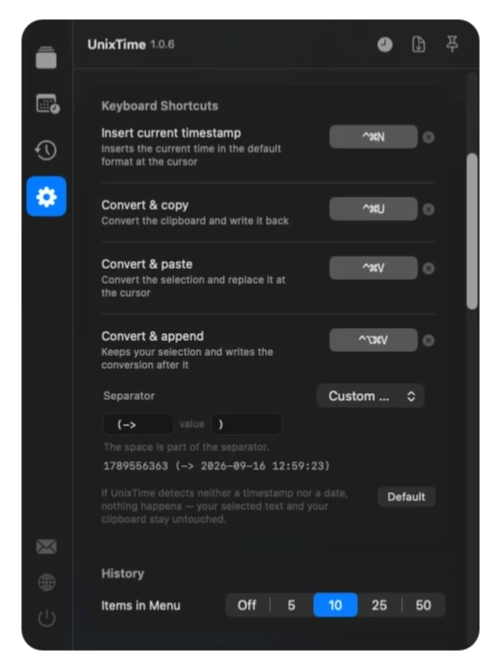
Before you start
UnixTime works with individual time values. Copy the relevant value or a supported single field assignment. It does not parse entire JSON documents.
For repeated conversions, the menu bar and global keyboard shortcuts stay within reach while you work. Conversion runs locally on your Mac.
Use a custom date format: SSS for milliseconds (3 digits), SSSSSS for microseconds (6 digits), or SSSSSSSSS for nanoseconds (9 digits). Choose nine digits to display all available nanoseconds. Shorter patterns show only the leading digits, without rounding up.
UnixTime must be running on your Mac. All shortcuts can be reassigned. Replacing, inserting and appending text require macOS Accessibility permission and an editable destination. Converting the clipboard with the menu bar icon or ⌘⌃U does not require that permission. ⌘ means Command, ⌃ means Control and ⌥ means Option (Alt).
Yes. Conversion, the date generator and history run locally. They need neither an account nor an internet connection. UnixTime is a one-time purchase without a subscription; see the Mac App Store for the current price.
For your next timestamp
Install UnixTime, choose your default formats and try the workflow with your own time value.
