Does not round. Down to the nanosecond.
Two events can occur within the same second. UnixTime preserves the input’s nanoseconds; SSSSSSSSS displays all nine fractional digits.
UnixTime · Security & Digital Forensics
UnixTime converts numeric input timestamps with nanosecond precision. Fractional digits are preserved instead of being recreated from whole seconds. For individual time values from logs, artefacts and telemetry — locally on your Mac, with the menu bar icon or ⌘⌃U.
Nanosecond precision for forensics: convert Unix timestamps, FILETIME and browser artefacts locally, without rounding.
Sound familiar?
Two events can occur within the same second. UnixTime preserves the input’s nanoseconds; SSSSSSSSS displays all nine fractional digits.
Choose the format based on the artefact source. FILETIME and WebKit are explicitly supported.
Copy the original value into a working note and add the conversion using Convert & Append.
Conversion and history run on your Mac. No upload is needed to convert a value.
Your next time value
Choose the actual source format — Unix nanoseconds in this example — and a custom UTC date format with SSSSSSSSS.
Copy the numeric value and convert it with the menu bar icon or ⌘⌃U.
Keep the original, source format and UTC result together so you can follow the comparison later.
The example uses UTC. Your output follows your selected default formats. Direct insertion via a shortcut requires macOS Accessibility permission.
Formats and keyboard shortcuts explained →
Precision for log analysis & forensics
Convert Unix timestamps with nanosecond precision. UnixTime preserves fractional seconds from numeric input timestamps. No floating-point rounding. No zeros recreated from whole seconds.
17908128001234567892026-10-01 00:00:00.123456789 UTCExample: Unix nanoseconds, a custom date format and the UTC time zone. Source accuracy still matters; conversion does not invent extra measurement precision.
| Pattern | Display precision | Example |
|---|---|---|
SSS | Milliseconds (3 digits) | .123 |
SSSSSS | Microseconds (6 digits) | .123456 |
SSSSSSSSS | Nanoseconds (9 digits) | .123456789 |
Use, for example yyyy-MM-dd HH:mm:ss.SSSSSSSSS. Nine digits display the full nanosecond fraction. Three or six display only the leading digits, without rounding up. A pattern without S does not display fractional seconds.
Keyboard shortcuts on your Mac
Copy your time value and click the menu bar icon — or press ⌘⌃U. Reassign any of the four shortcuts to suit your workflow.
⌘ = Command · ⌃ = Control · ⌥ = Option. Inserting, replacing and appending text require macOS Accessibility permission and an editable text field. Clipboard conversion does not require that permission.
Keyboard shortcuts explained →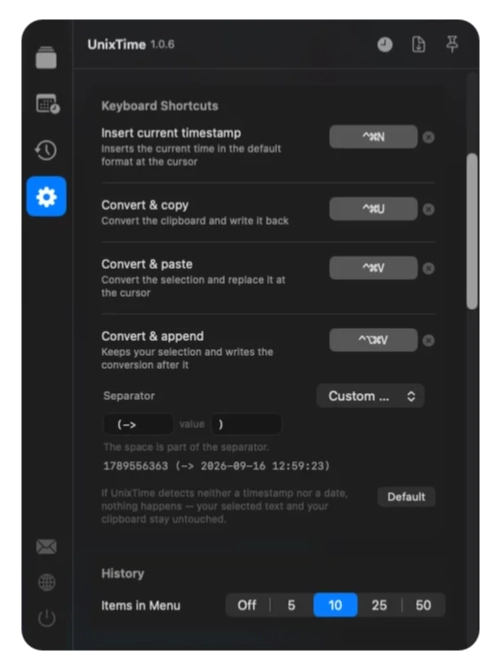
Before you start
No. It is a helper for individual conversions. Artefact extraction, evidence preservation and full timeline analysis belong in your dedicated tools.
Conversion preserves the source value’s precision. You still need to check source measurement accuracy and clock synchronisation across systems. UnixTime is not a measuring instrument and does not build a complete timeline.
Use a custom date format: SSS for milliseconds (3 digits), SSSSSS for microseconds (6 digits), or SSSSSSSSS for nanoseconds (9 digits). Choose nine digits to display all available nanoseconds. Shorter patterns show only the leading digits, without rounding up.
UnixTime must be running on your Mac. All shortcuts can be reassigned. Replacing, inserting and appending text require macOS Accessibility permission and an editable destination. Converting the clipboard with the menu bar icon or ⌘⌃U does not require that permission. ⌘ means Command, ⌃ means Control and ⌥ means Option (Alt).
Yes. Conversion, the date generator and history run locally. They need neither an account nor an internet connection. UnixTime is a one-time purchase without a subscription; see the Mac App Store for the current price.
For your next timestamp
Install UnixTime, choose your default formats and try the workflow with your own time value.
