Seconds and milliseconds get confused
Compare 1790812800 seconds with 1790812800000 milliseconds: they describe the same instant.
UnixTime · Students & Educators
A number makes more sense when you can see its date. Compare time and date formats on your Mac and create your own examples for exercises and teaching.
Understand Unix timestamps: convert and compare seconds, milliseconds, microseconds and nanoseconds without rounding.
Sound familiar?
Compare 1790812800 seconds with 1790812800000 milliseconds: they describe the same instant.
Look at UTC and local date representations. The display changes; the instant stays the same.
Choose a date in the generator and copy its time values into your exercise notes.
Your next time value
Set the generator to 1 October 2026 at 00:00:00 UTC.
Look at the Unix value in seconds and milliseconds alongside the readable UTC date.
Copy the numeric time value and convert it back to a date with the menu bar icon or ⌘⌃U.
The example uses UTC. Your output follows your selected default formats. Direct insertion via a shortcut requires macOS Accessibility permission.
Formats and keyboard shortcuts explained →
Precision for log analysis & forensics
Convert Unix timestamps with nanosecond precision. UnixTime preserves fractional seconds from numeric input timestamps. No floating-point rounding. No zeros recreated from whole seconds.
17908128001234567892026-10-01 00:00:00.123456789 UTCExample: Unix nanoseconds, a custom date format and the UTC time zone. Source accuracy still matters; conversion does not invent extra measurement precision.
| Pattern | Display precision | Example |
|---|---|---|
SSS | Milliseconds (3 digits) | .123 |
SSSSSS | Microseconds (6 digits) | .123456 |
SSSSSSSSS | Nanoseconds (9 digits) | .123456789 |
Use, for example yyyy-MM-dd HH:mm:ss.SSSSSSSSS. Nine digits display the full nanosecond fraction. Three or six display only the leading digits, without rounding up. A pattern without S does not display fractional seconds.
Keyboard shortcuts on your Mac
Copy your time value and click the menu bar icon — or press ⌘⌃U. Reassign any of the four shortcuts to suit your workflow.
⌘ = Command · ⌃ = Control · ⌥ = Option. Inserting, replacing and appending text require macOS Accessibility permission and an editable text field. Clipboard conversion does not require that permission.
Keyboard shortcuts explained →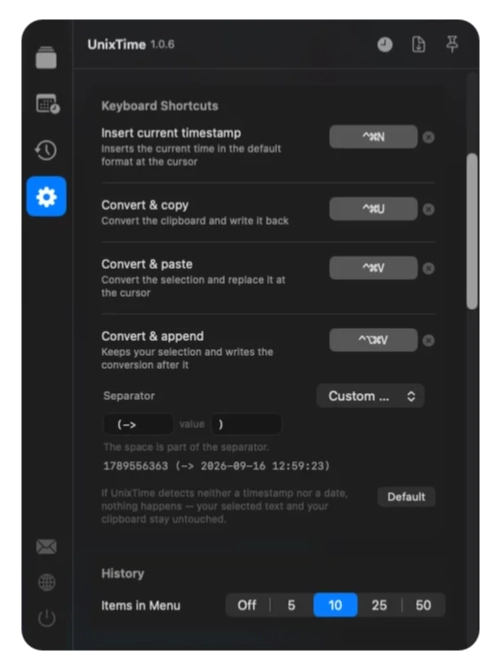
Before you start
A Unix timestamp counts elapsed time from the Unix epoch. The time zone determines how that instant is displayed as a calendar date and clock time.
No. The app is a practical tool for creating and checking examples. You can also find explanations of the formats in the help section on this website.
Use a custom date format: SSS for milliseconds (3 digits), SSSSSS for microseconds (6 digits), or SSSSSSSSS for nanoseconds (9 digits). Choose nine digits to display all available nanoseconds. Shorter patterns show only the leading digits, without rounding up.
UnixTime must be running on your Mac. All shortcuts can be reassigned. Replacing, inserting and appending text require macOS Accessibility permission and an editable destination. Converting the clipboard with the menu bar icon or ⌘⌃U does not require that permission. ⌘ means Command, ⌃ means Control and ⌥ means Option (Alt).
Yes. Conversion, the date generator and history run locally. They need neither an account nor an internet connection. UnixTime is a one-time purchase without a subscription; see the Mac App Store for the current price.
For your next timestamp
Install UnixTime, choose your default formats and try the workflow with your own time value.
